




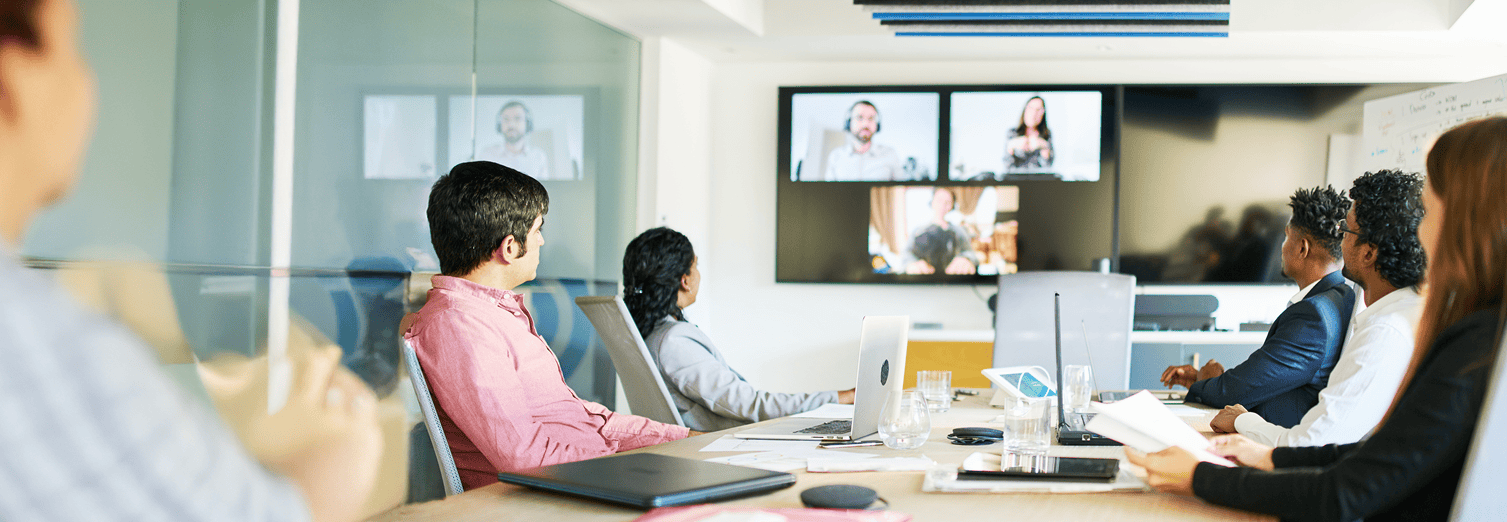
Microsoft Teams Rooms on Windows
Single‑cable BYOD, dual‑screen operation and reliable GPIO Button control for Teams Rooms on Windows. Lightware integrates AV distribution, USB management and room control for predictable, low‑support Microsoft Teams Rooms deployments.
Our Microsoft Teams Rooms Integration allows integrators to expand MTR system functionality by adding advanced AV connectivity, automation, and control features that go beyond the MTR core system.

Meeting Peripherals in BYOD Mode
Enables users to connect their own laptop and utilize the room’s professional camera and microphone setup on any video platform.

Content Sharing Mode
Allows simultaneous content sharing from a secondary laptop while a Microsoft Teams Rooms meeting is in progress.

Control Devices in the Room
Manage devices like the projector or lighting via the touch panel, enhancing the overall room experience.
Dual‑Display Teams Rooms on Windows
Single‑Cable BYOD with GPIO Button Control
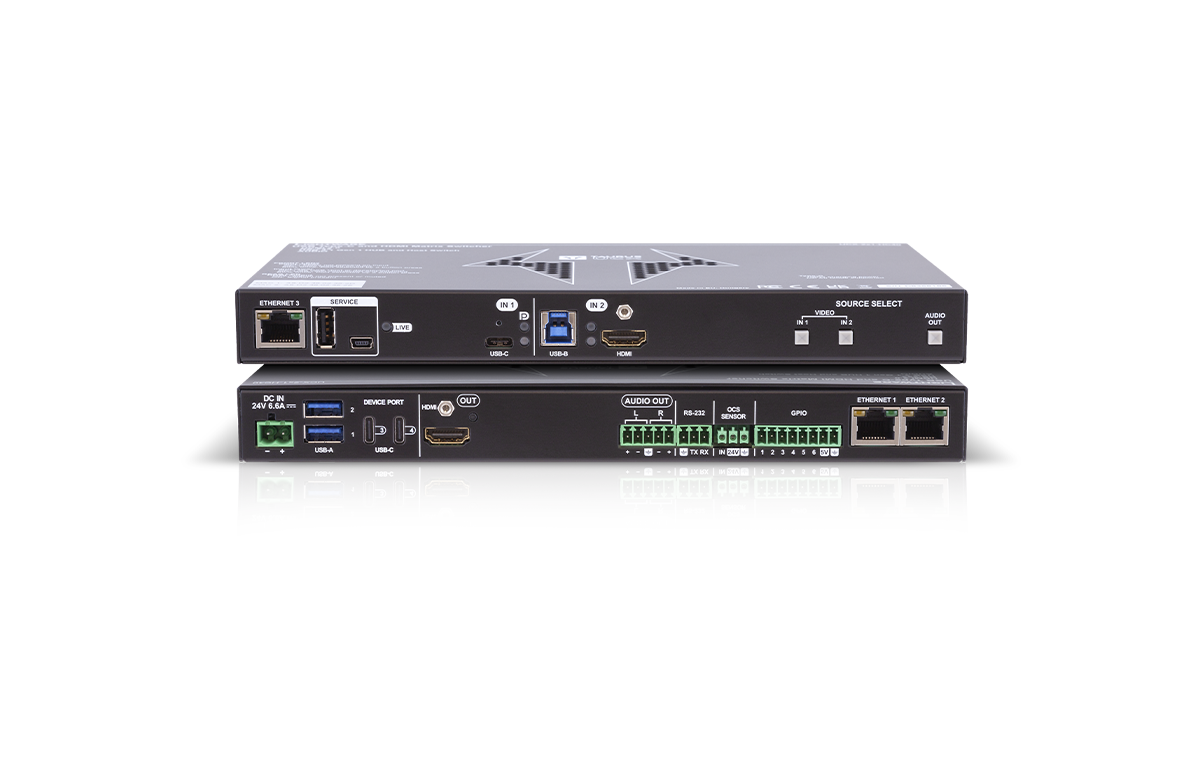
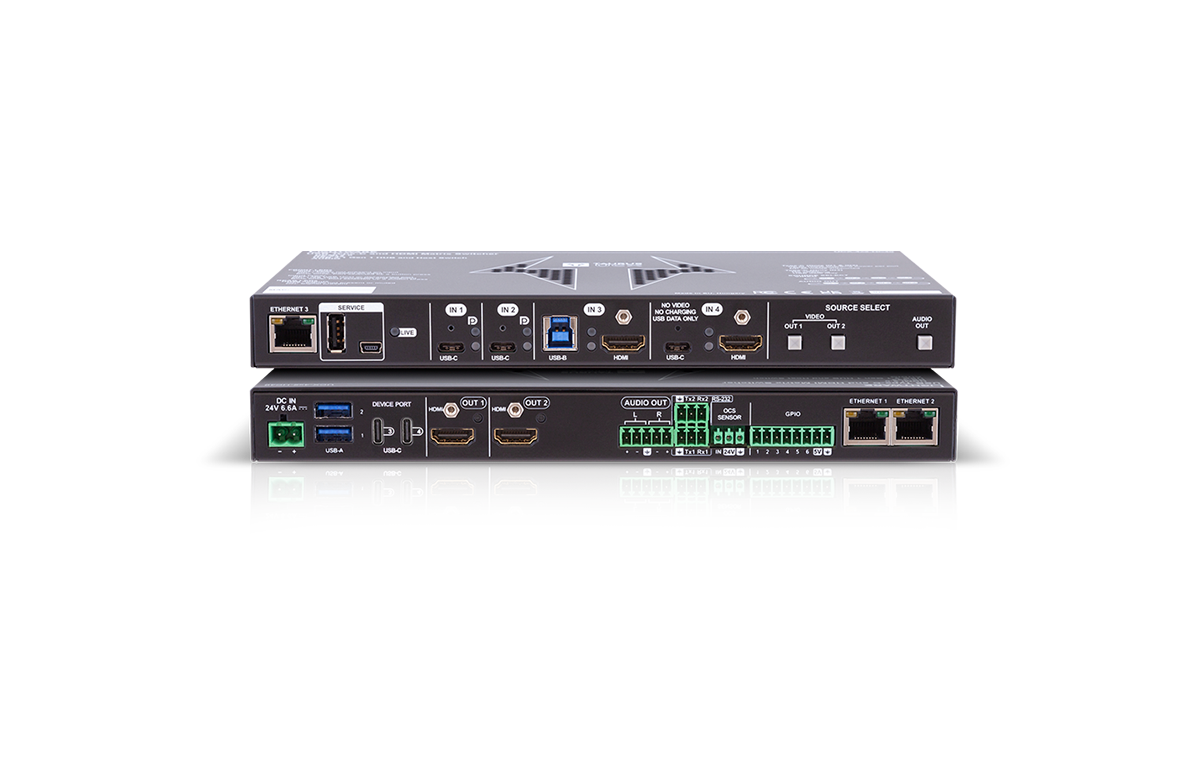
MTRoW solution powered by the UCX‑4x3‑HCM40 (Taurus Dual Screen), delivering uncompromised dual 4K60 4:4:4 extended desktop displays over a single USB-C cable, with full plug-and-play support for Windows and macOS alike . It features transparent USB and video extension for room peripherals , paired with deterministic mode switching via a physical GPIO button and optional Companion App automation
- One USB‑C connection from a laptop provides an extended desktop across both room displays, letting presenters show different content on each screen in BYOD mode
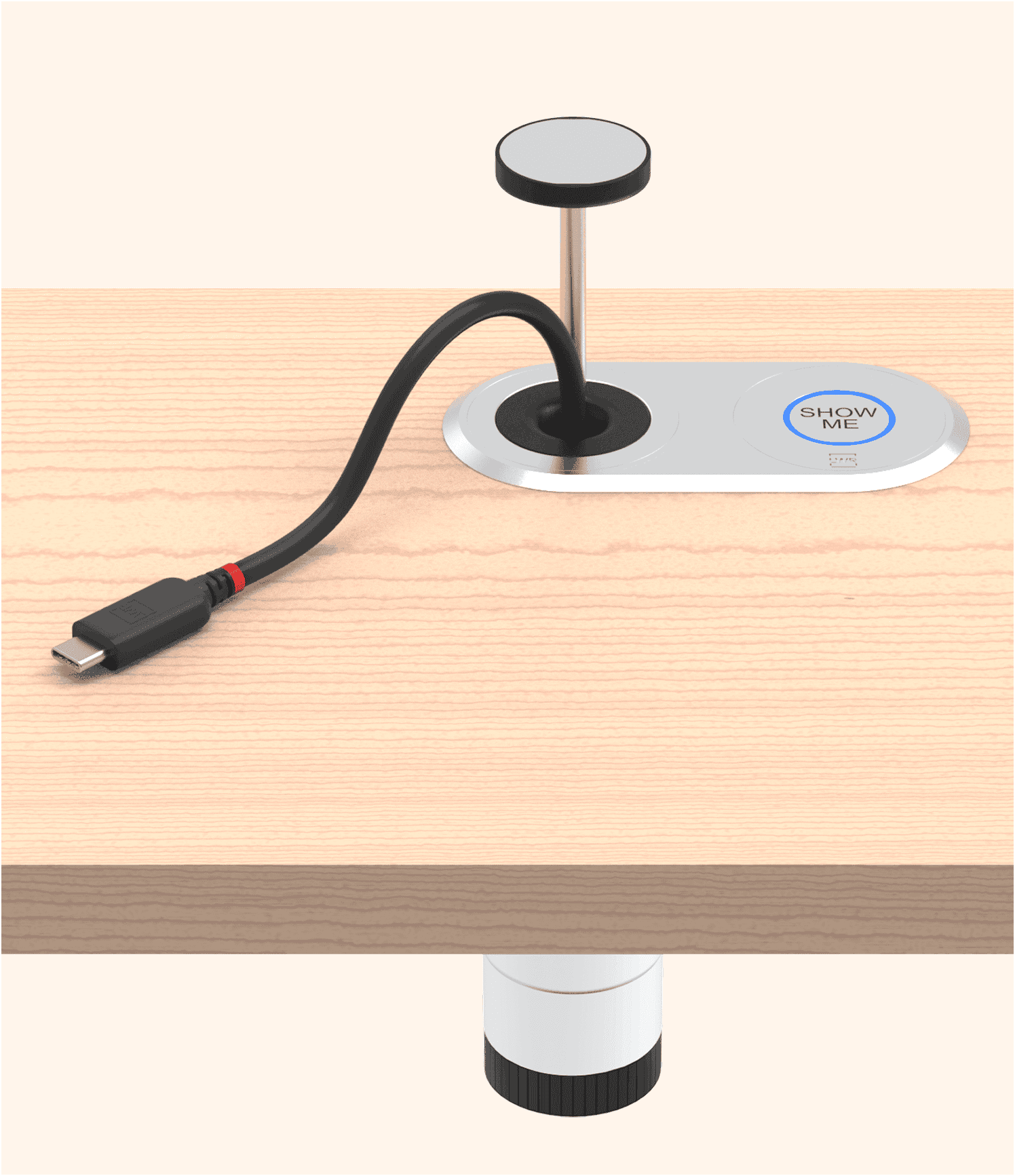
- Physical GPIO button offers one‑touch MTR/BYOD switching with LED status
- UCX routing preserves full USB (UVC, HID, UAC) and video performance across extenders and receivers so cameras, speakerphones and touch panels behave predictably
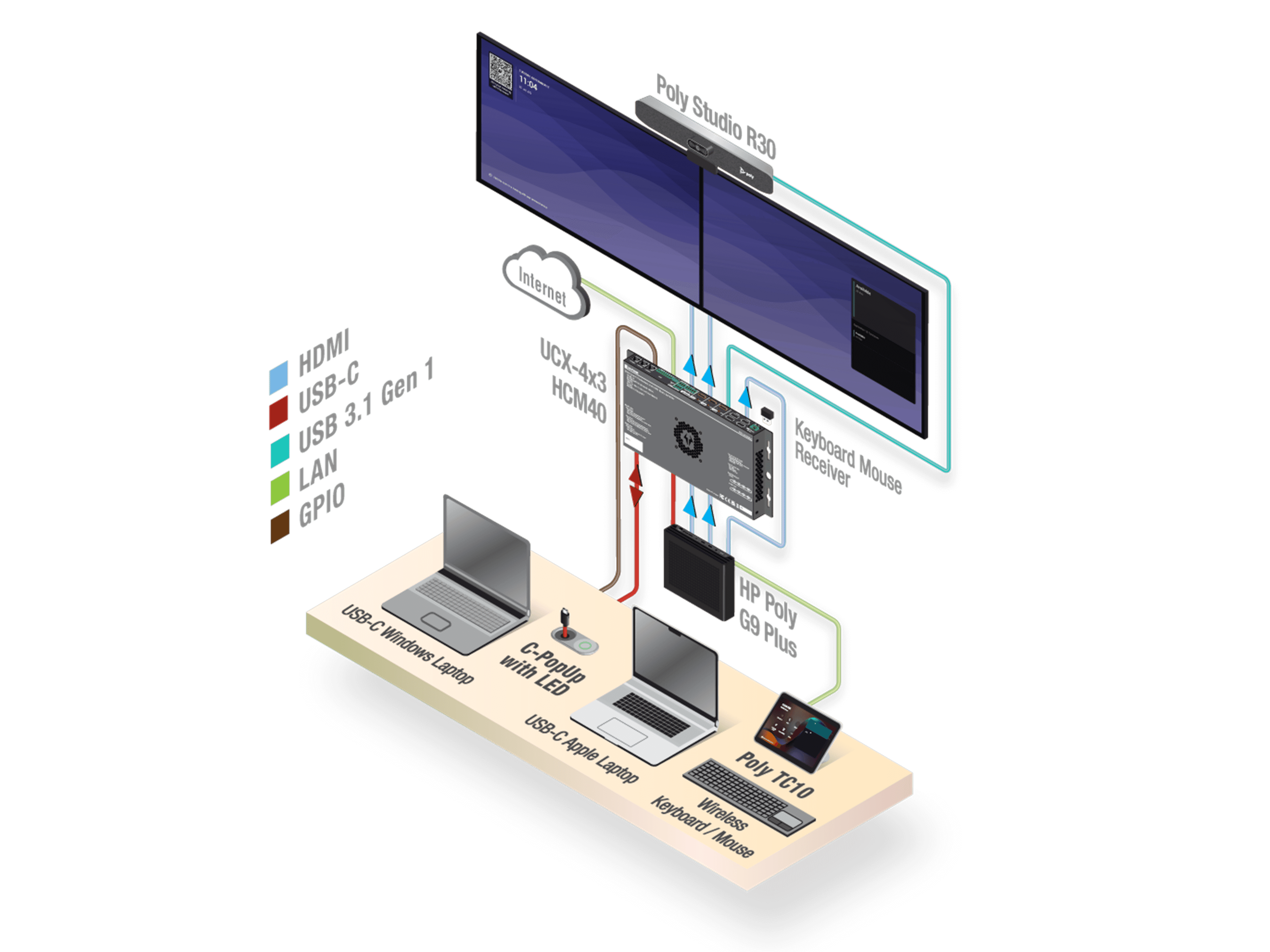

Control with Just One Cable
Dual screen BYOD functionality with over a single USB-C cable

Seamless MTRoW integration
Call status monitoring and flexible peripheral switching

Universal Compatibility
Plug-and-play support for Windows and macOS devices

Manual Teams Mode/BYOD Mode switching
GPIO button integration with live LED light feedback
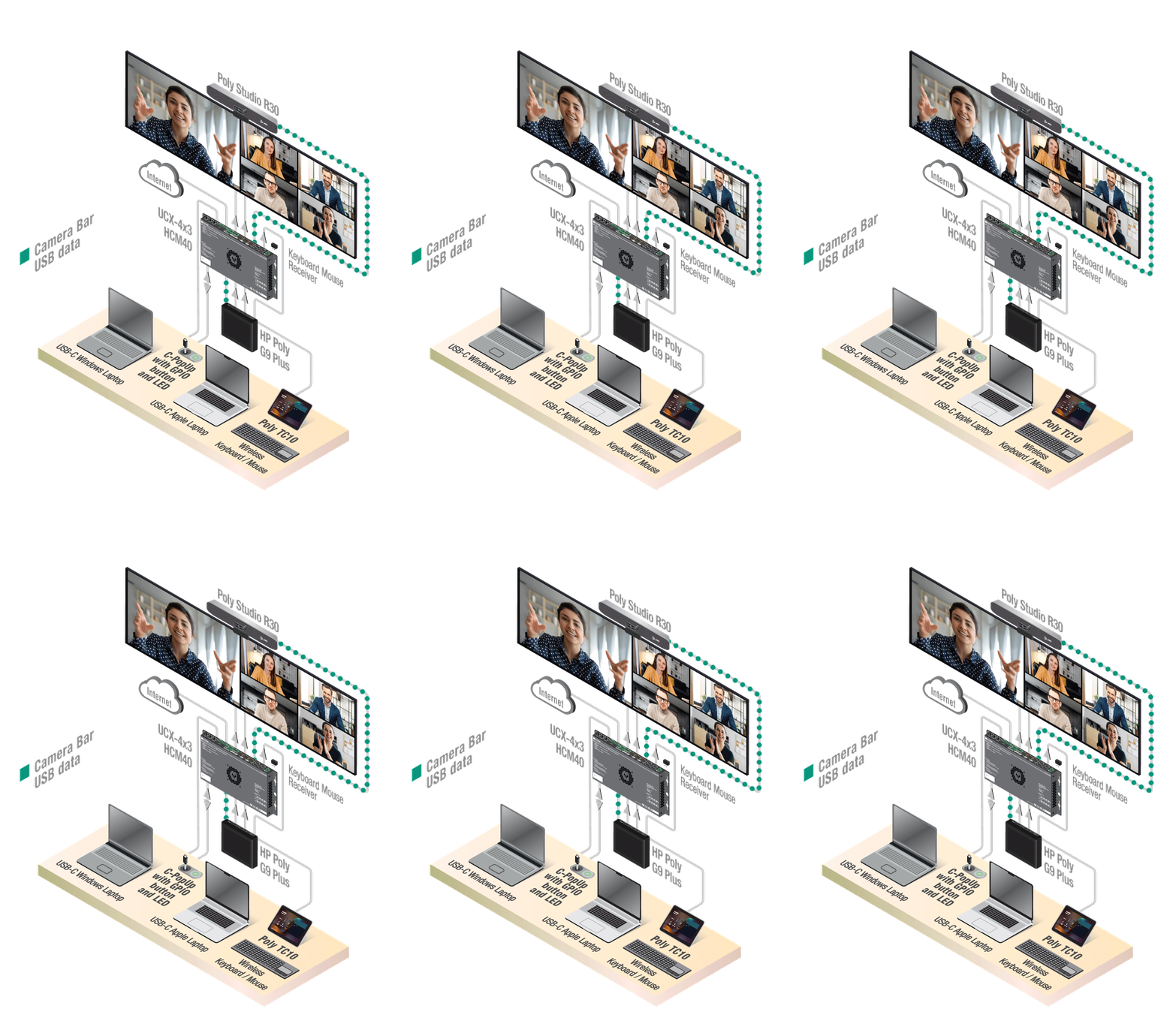
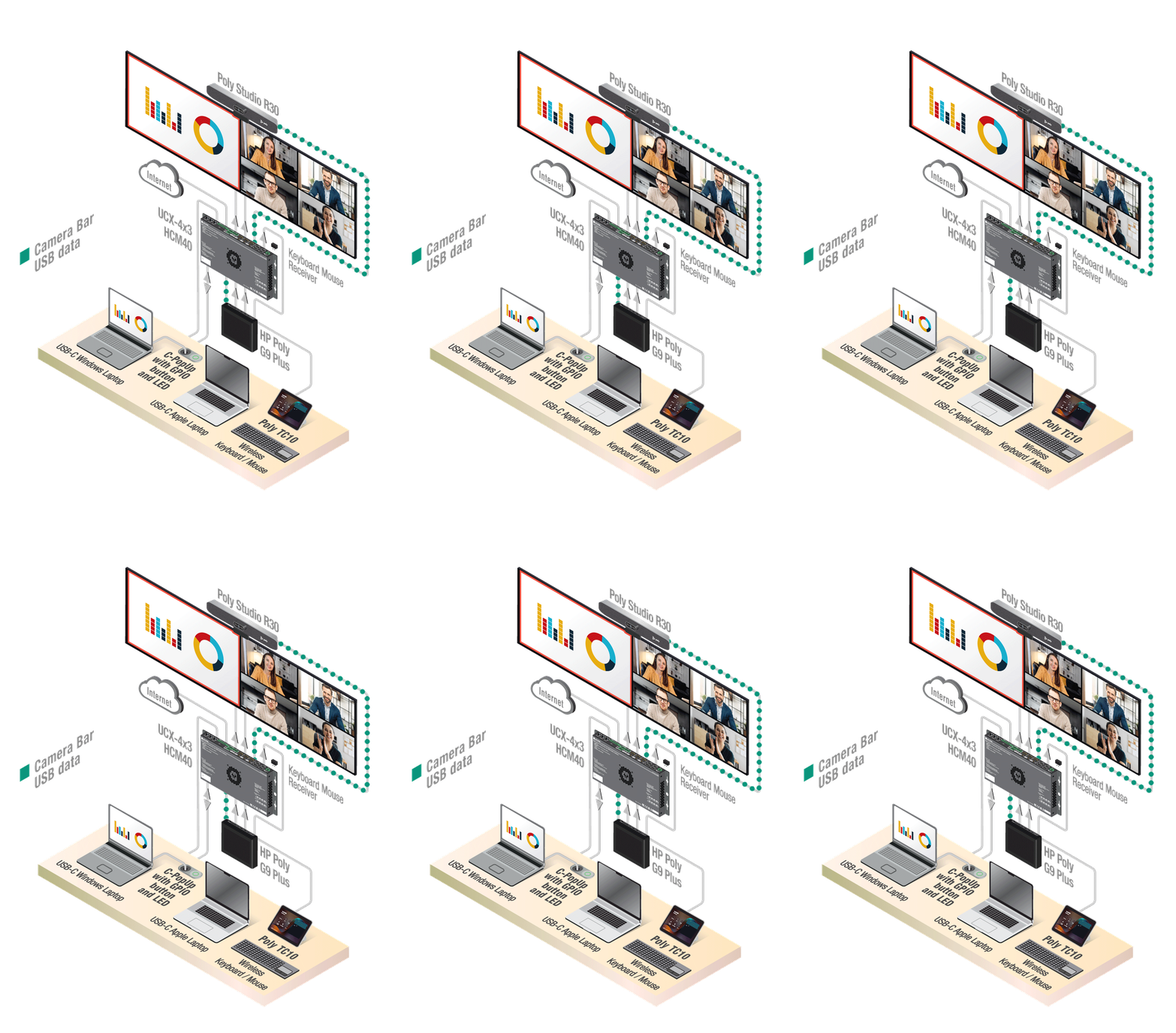
Teams-only Mode
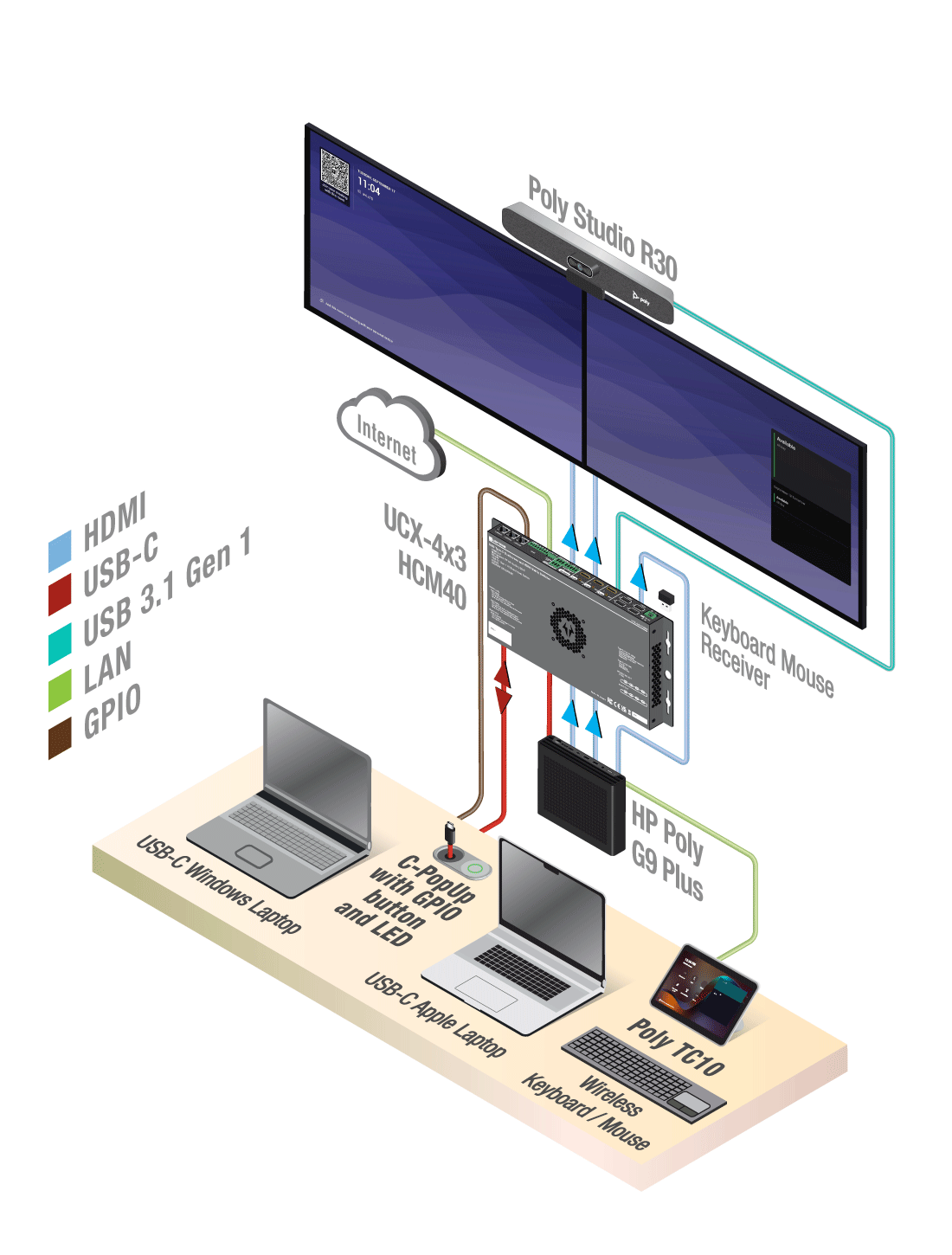
The Teams PC (HP Poly) is connected to the HCM40 with 2× DP-to-HDMI cables and accepts 2×4K60 signals. The HCM40 forwards these to the left and the right display via the 2× HDMI-HDMI cables.
The USB Camera Bar (along with the keyboard and mouse) is switched to the Teams PC (HP Poly) by the HCM40's built-in USB Hub and USB Host Switch.
Bring Your Own Meeting Mode
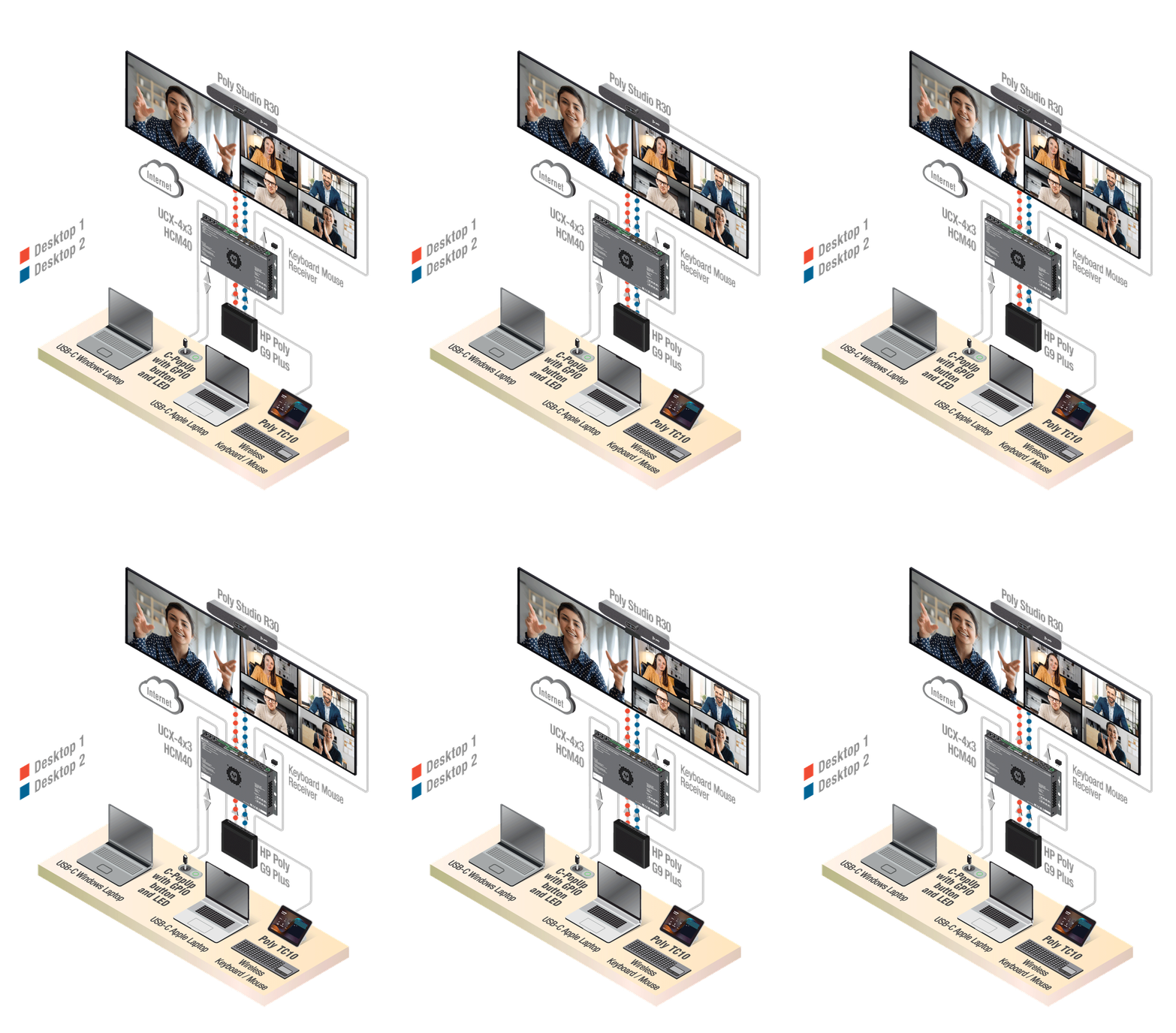
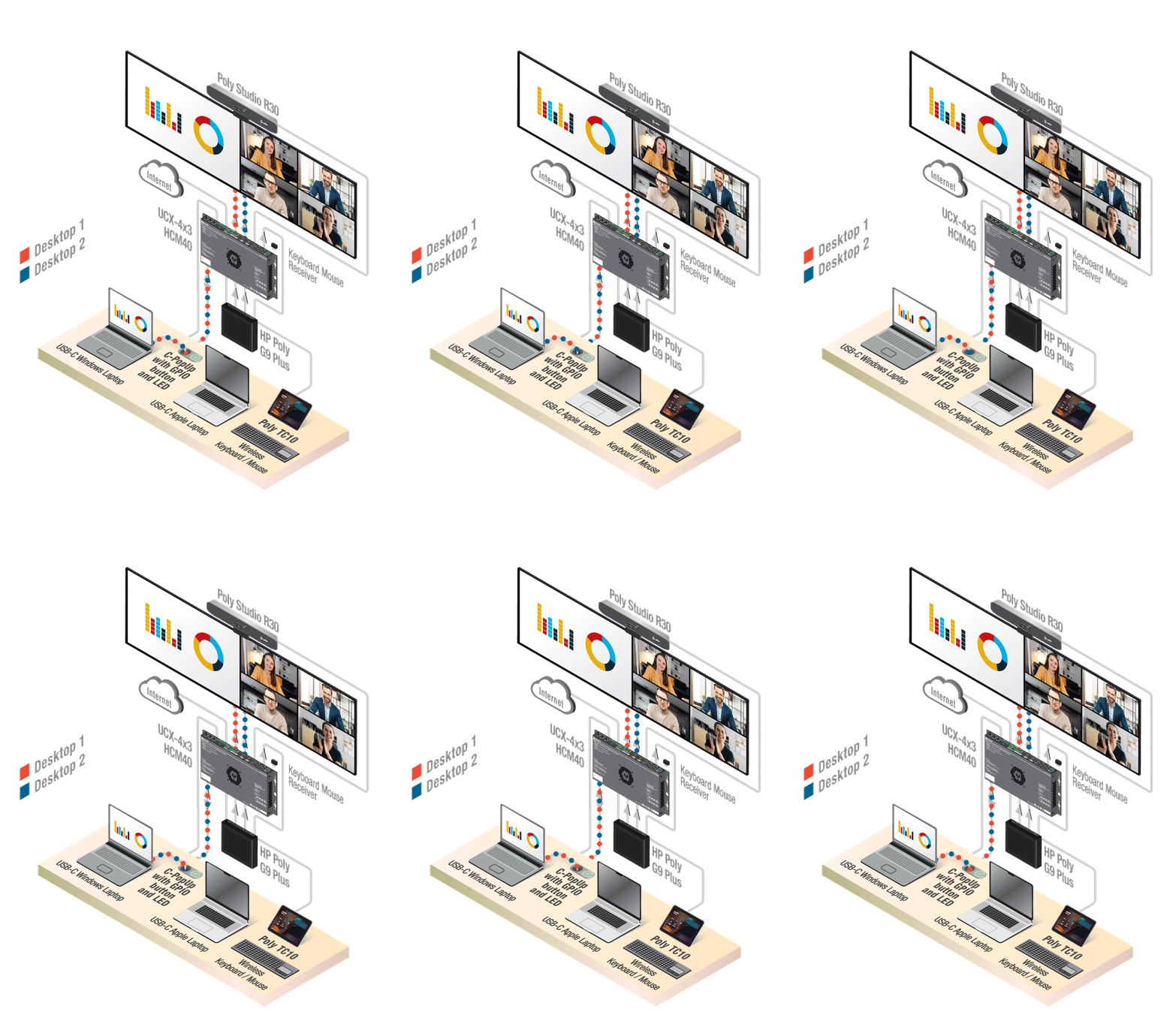
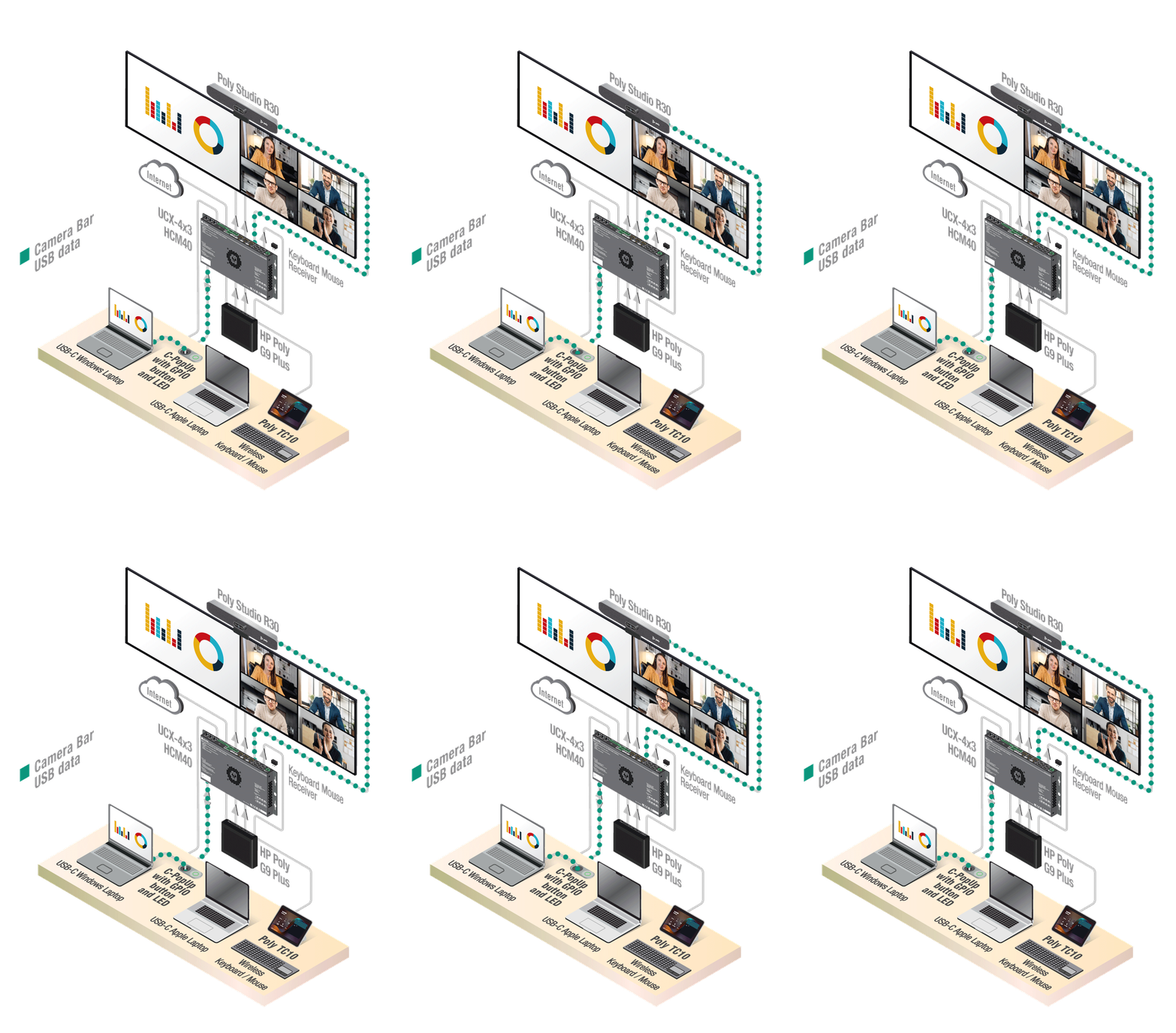
The unique capability of the HCM40 is that it can accept 2×4K60 extended desktops from the Windows or Mac (!) laptop over a single USB-C cable, while also allowing the built-in display of the laptop to function as the 3rd desktop. The HCM40 then separates the 2× incoming signals and sends them to the left and right displays via their respective HDMI connections.
In this BYOM scenario the laptop is running the call so the HCM40 switches the USB Camera Bar + keyboard + mouse to the laptop so they can be utilized in the Teams / Zoom / Google Meet / Webex conference.
Teams Ingest Mode
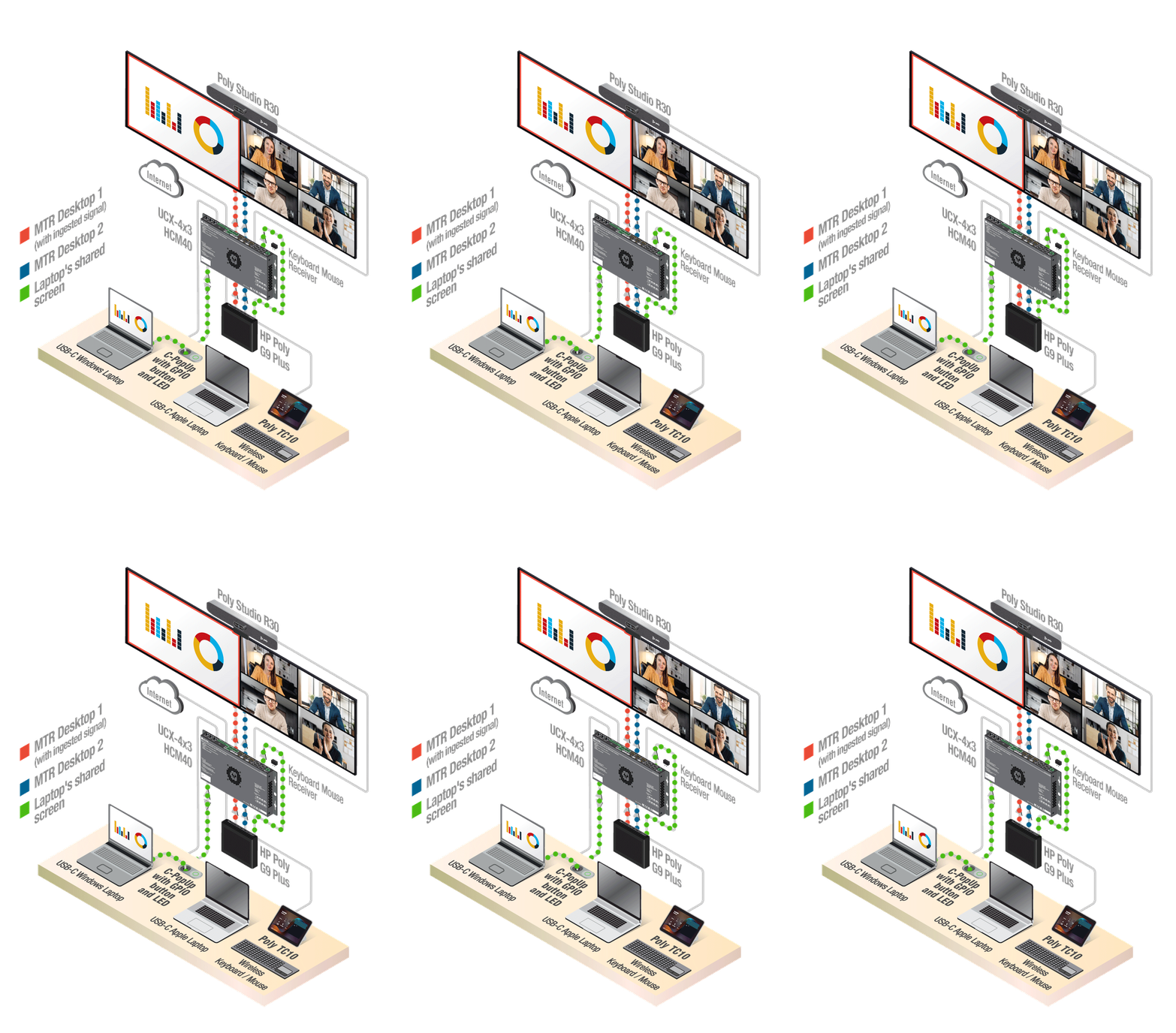
The Teams PC (HP Poly) is running the Teams meeting, driving the 2× displays via the 2× DP-to-HDMI connections, while the laptop is connected to the USB-C cable (now forced by the HCM40 to send only 1× extended or mirrored desktop signal). The laptop's signal is forwarded to the Ingest port of the Teams PC so that the presentation can be shown on one of the local displays and shared with the remote participants of the conference call.
Even though the laptop is connected, the call is still run by the Teams PC (HP Poly) so the Camera bar + keyboard + mouse remain connected to it. The USB-C cable is only used to accept the video signal from the laptop.
Intuitive, One-Touch Room Control with Optional Smart Automation
Primary, one-touch GPIO Button control: A dedicated physical push-button provides immediate, deterministic switching between MTR and BYOD modes. Integrated LED feedback gives users clear, instant status visibility right at the table, with zero learning curve and no third-party software dependencies.
Optional software-driven automation: Deploy the Lightware Companion App whenever automated transitions based on live call status are desired, or to add custom room control and source selection pages directly on the MTR touch console.
Accidental interruption prevention: When using the Companion App, call-status awareness can lock USB switching during active Teams calls, preventing participants from inadvertently disconnecting an ongoing meeting.
Guaranteed operation, low support: The physical GPIO button ensures full, reliable control at all times, making room operation rock-solid and independent of network or background service states.
Downloads
Get the Companion App and the latest MTRoW integration packages, user manuals covering UCX/TPX and HCM40 dual‑screen LARA configurations.

Supported Products
Browse our MTRoW supported Products
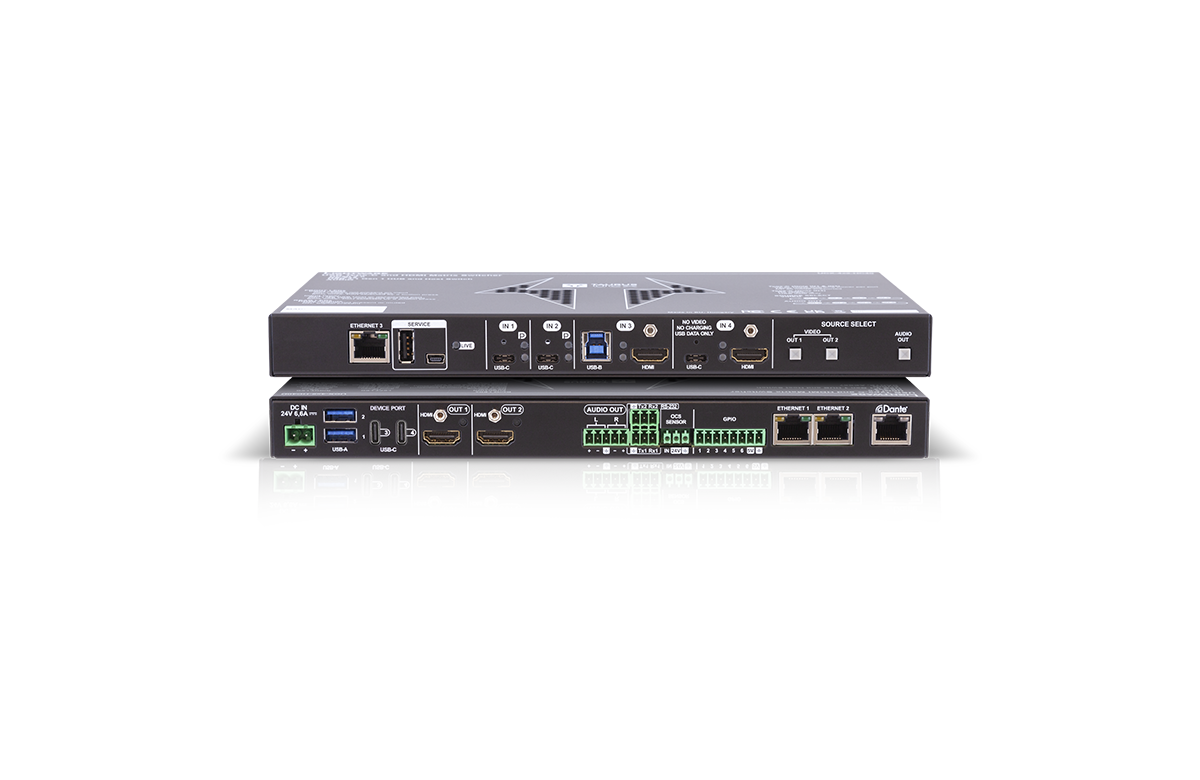
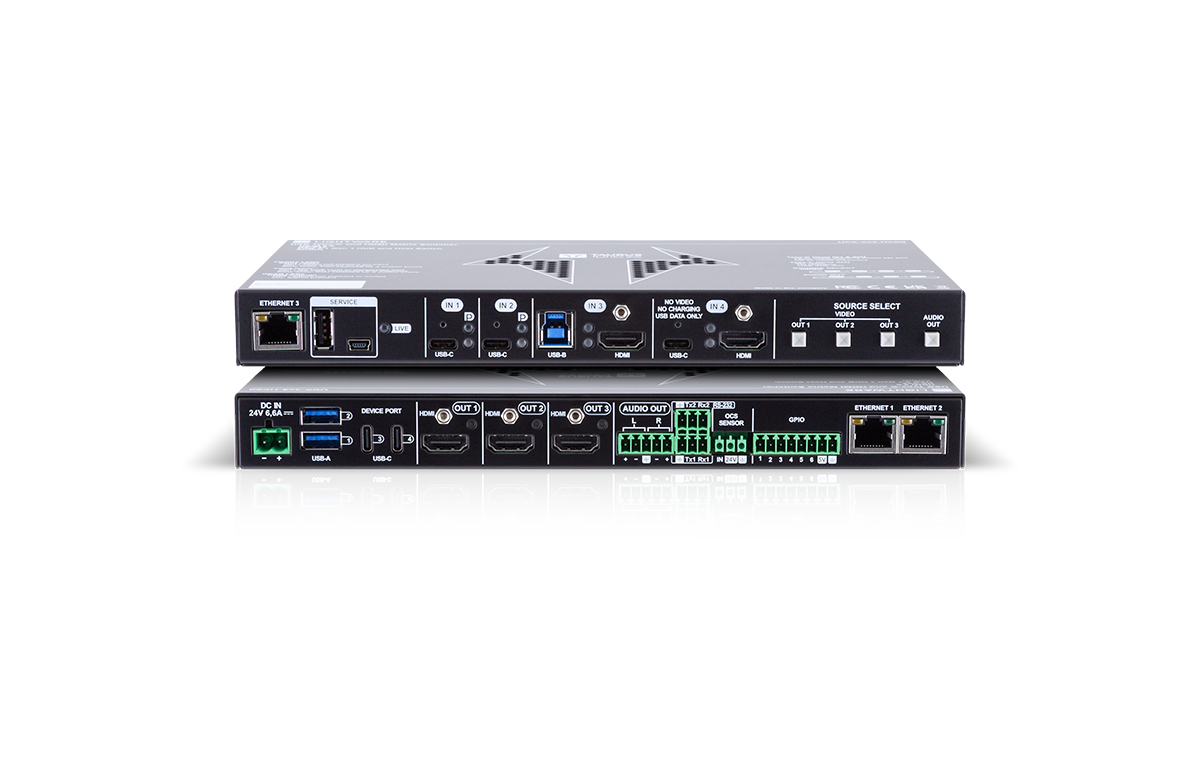
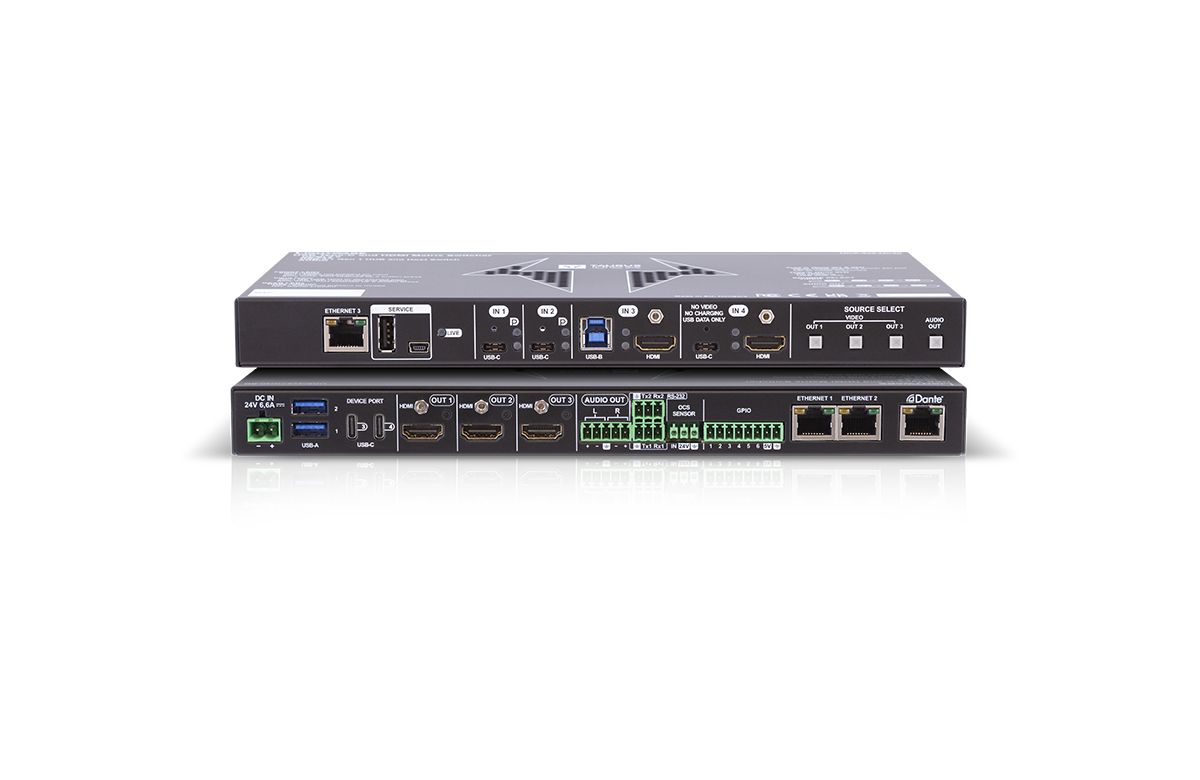


8 products
MTRoA
Native, API driven integration
Use Android‑based codecs (Poly, Cisco, etc.) for a native integration that delivers touch‑panel room control, reliable vendor‑API call status, and simplified deployments without a room PC — ideal when you want manufacturer‑validated stability and native UI support.
